
If you’re starting your coding journey or switching to a lightweight and powerful editor, Visual Studio Code (VS Code) is one of the best choices available today. It’s fast, free, and packed with features that developers love.
In this guide, I’ll walk you through how to download and install VS Code on Windows step by step, even if you’re a complete beginner.
Table of Contents
What is Visual Studio Code?
Visual Studio Code (VS Code) is a free, open-source code editor developed by Microsoft. It supports multiple programming languages like Java, JavaScript, Python, C++, and more.
Key Features:
- Lightweight and fast
- Built-in Git support
- Extensions marketplace
- IntelliSense (smart code completion)
- Debugging support
System Requirements
Before installing VS Code, make sure your system meets these basic requirements:
- Operating System: Windows 10 or Windows 11
- RAM: Minimum 4 GB (8 GB recommended)
- Storage: At least 520 MB free space
Step 1: Download VS Code
- Open your browser.
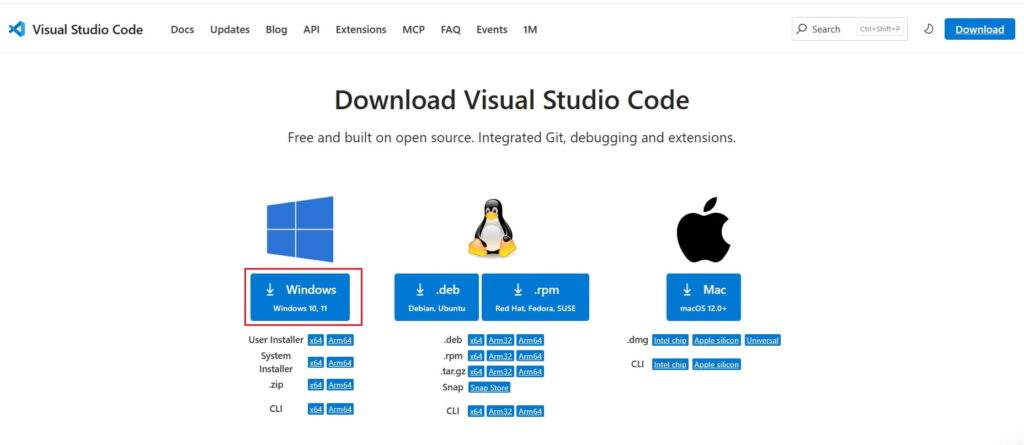
- Go to the official VS Code website: https://code.visualstudio.com/download
- Click on the Download for Windows button.
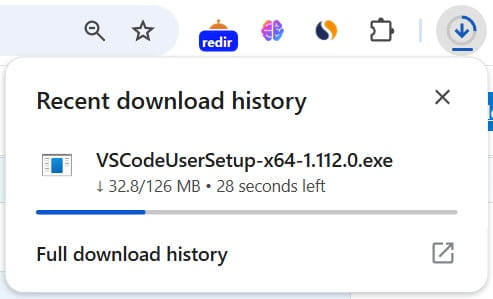
The installer file (VSCodeUserSetup-x64.exe) will start downloading.
Step 2: Run the Installer
- Navigate to your Downloads folder.
- Double-click the downloaded
.exefile. - If prompted, click Yes to allow the app to make changes.

Step 3: Accept License Agreement
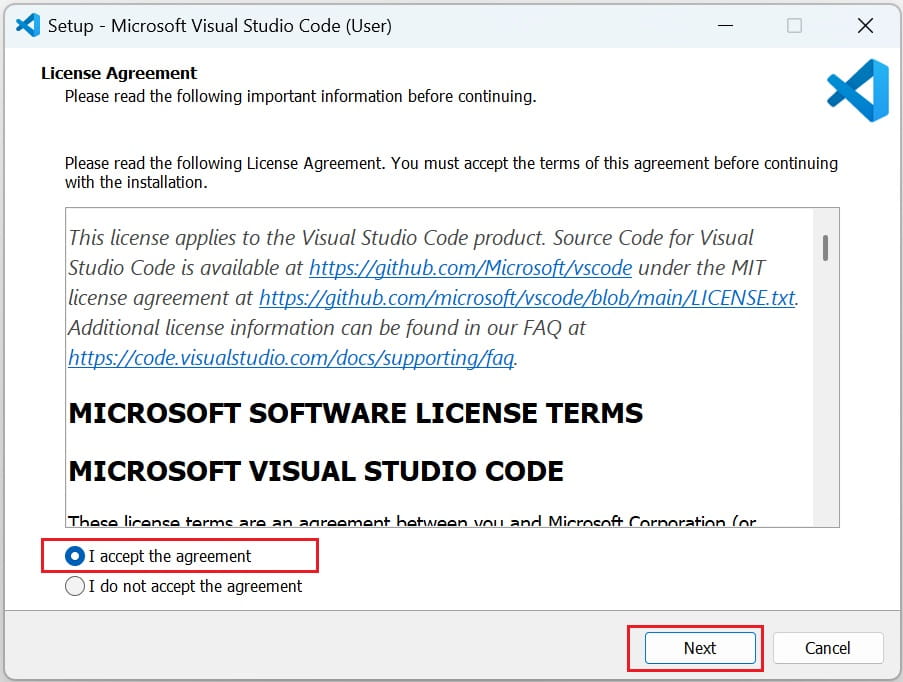
Select “I accept the agreement” and click Next
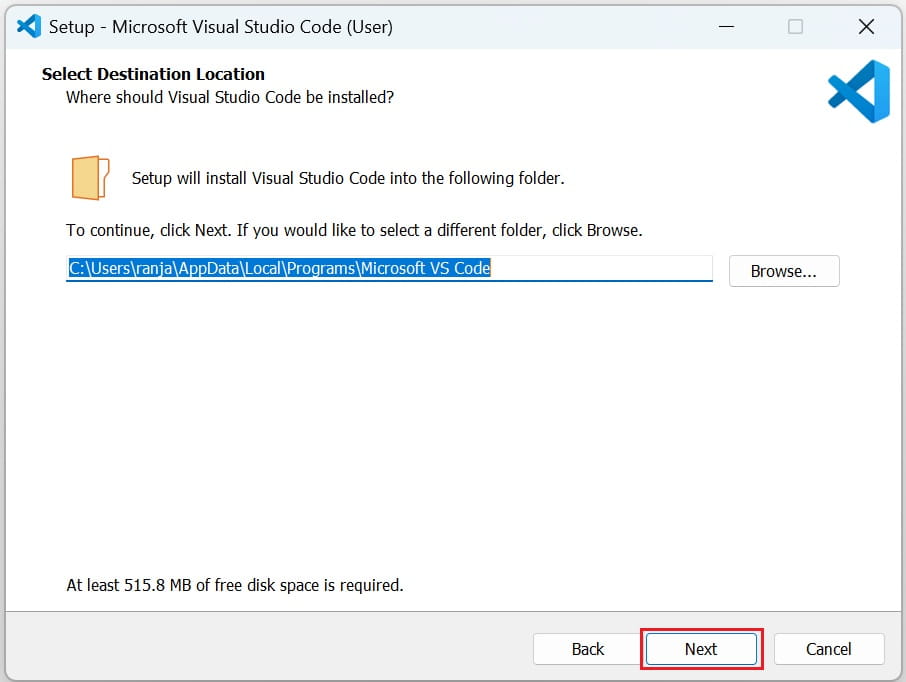
Step 4: Choose Installation Location
The default location is usually fine: C:\Users\YourName\AppData\Local\Programs\Microsoft VS Code, and click Next
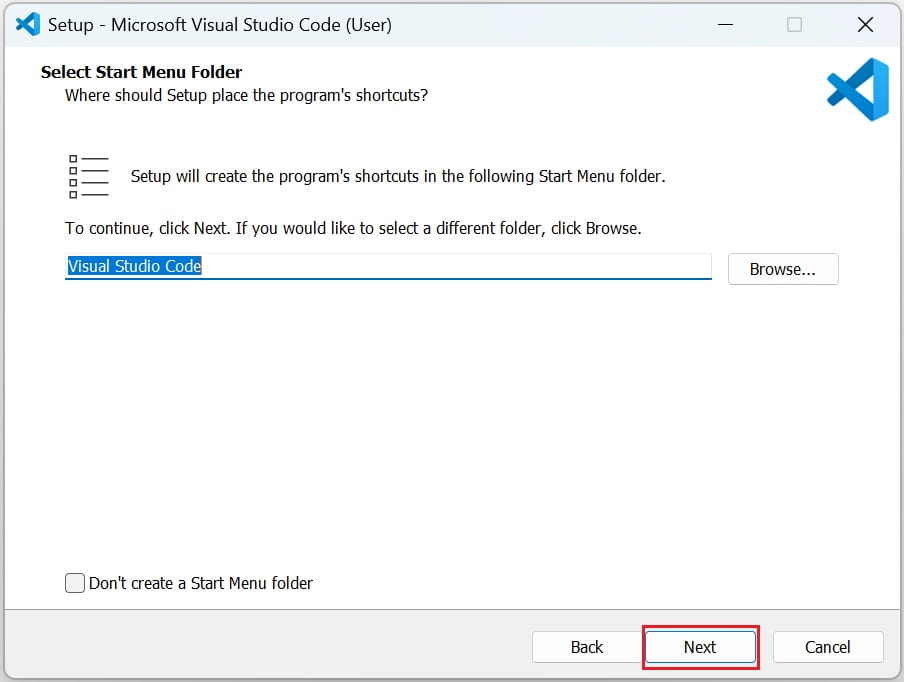
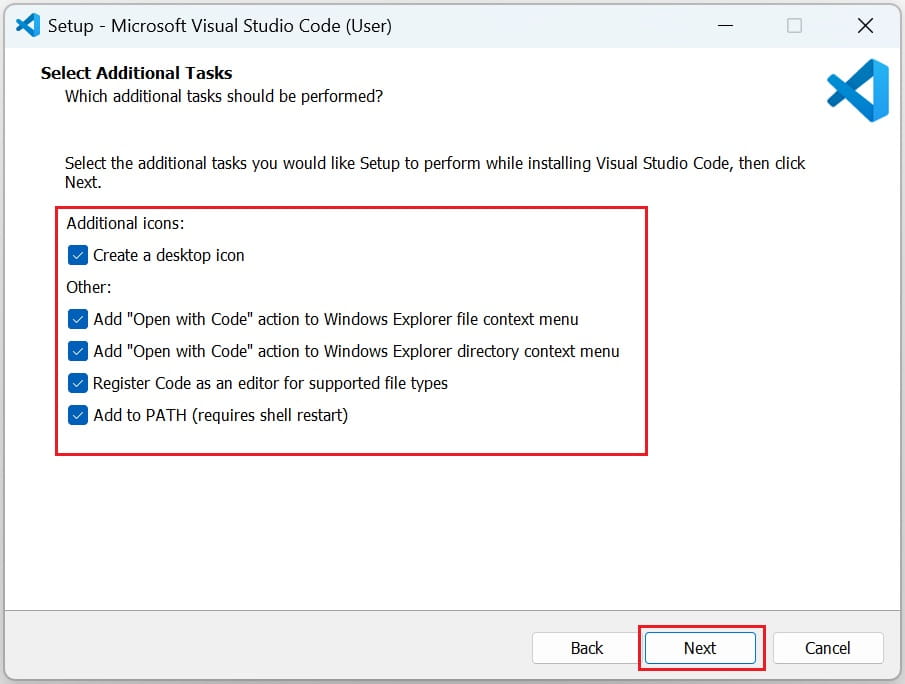
Step 5: Select Additional Tasks (Important)
Make sure to check these options for a better experience:
Create a desktop icon
Add “Open with Code” action to Windows Explorer
Add to PATH (very important)
Then click Next
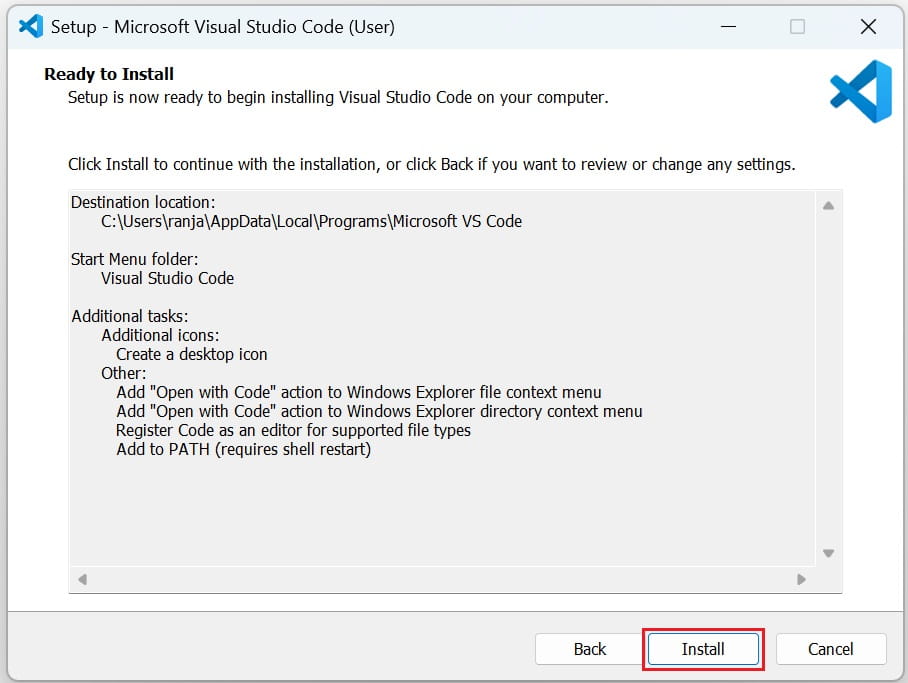
Step 6: Install VS Code
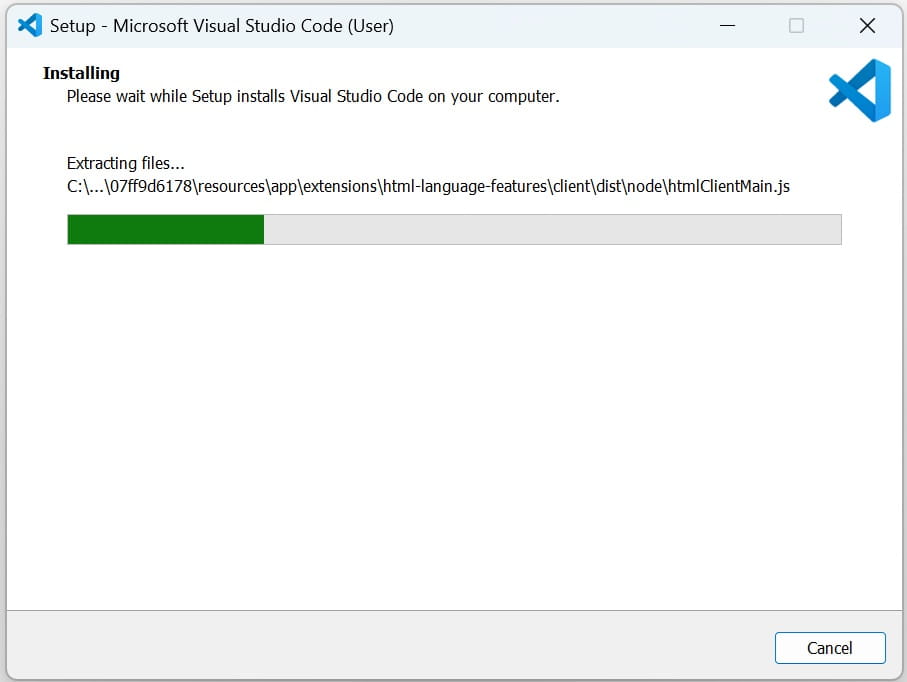
Click Install and wait for the installation to complete (takes less than a minute)
Step 7: Launch VS Code
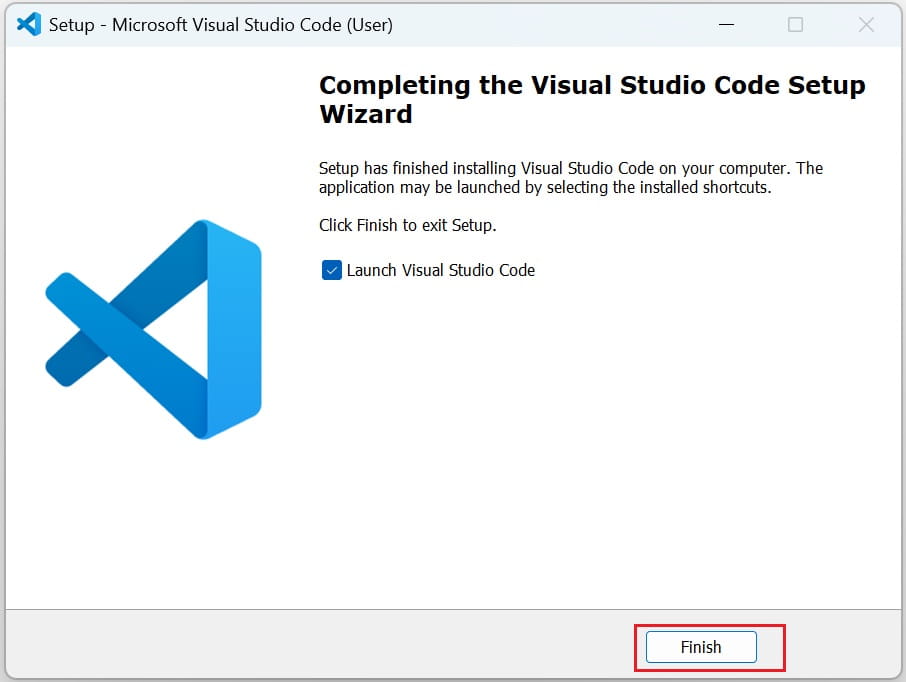
Check “Launch Visual Studio Code” and click Finish
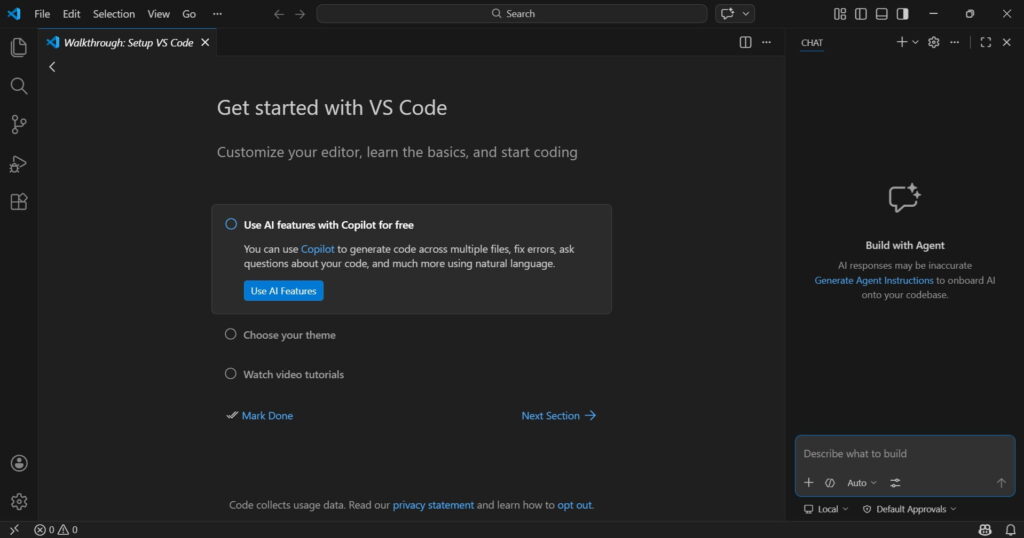
VS Code will open on your screen
Step 8: Install Useful Extensions
To make VS Code more powerful, install some essential extensions:
- Click on the Extensions icon (left sidebar)
- Search and install:
- Java Extension Pack (for Java developers)
- Prettier (code formatter)
- ESLint (JavaScript linting)
- Live Server (for web development)
Conclusion
Installing VS Code on Windows is simple and takes just a few minutes. With its powerful features and vast extension support, it’s an excellent choice for beginners and experienced developers.