
Download and install Postman: If you are new to API testing and want an easy-to-use tool, Postman is a great choice. It is widely used by developers, testers, and QA engineers for sending API requests, testing endpoints, and automating workflows.
In this article, we’ll walk you through everything you need to know — from downloading and installing Postman to setting it up for the first time.
This beginner-friendly tutorial covers:
- What is Postman, and why is it useful
- System requirements and supported platforms
- How to install Postman on Windows, macOS, and Linux
- First-time setup and UI walkthrough
- Using Postman Web vs Desktop
- Troubleshooting common setup issues
Let’s get started!
Table of Contents
What is Postman and Why It’s Useful for API Testing
Postman is a powerful API development and testing tool that simplifies sending requests and analyzing responses. With Postman, you can:
- Send HTTP requests (GET, POST, PUT, DELETE, etc.)
- Test REST, SOAP, and GraphQL APIs
- Save and organize requests into collections
- Automate testing with built-in scripting
- Share APIs and collaborate with team members
In short, Postman makes API testing faster, easier, and more collaborative.
System Requirements and Supported Platforms
Postman is available for Windows, macOS, and Linux. Here are the general requirements:
- Windows: Windows 7 or later (64-bit recommended)
- macOS: macOS 10.13 (High Sierra) or later
- Linux: Ubuntu 18.04+, Fedora 30+, Debian 10+ (64-bit recommended)
- RAM: At least 4 GB
- Disk Space: Around 500 MB free space
If you don’t want to install anything, you can also use Postman Web directly in your browser.
3. How to Download Postman from the Official Site
To avoid fake or outdated versions, always download Postman from the official website:
1. Go to https://www.postman.com/downloads/
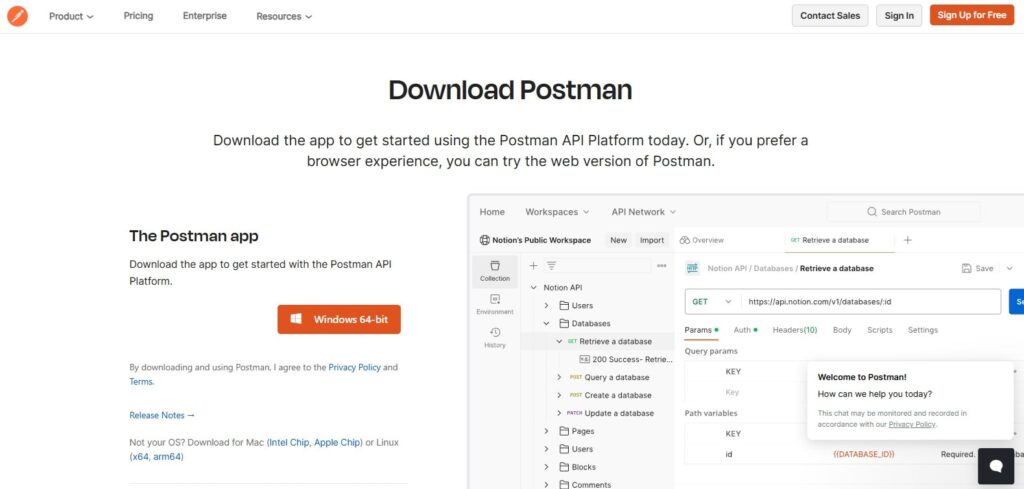
2. Select your operating system (Windows, Linux, or macOS) and download the installer (e.g., .exe, .tar.gz or .dmg).
Pro Tip: Choose the 64-bit version if your system supports it for better performance.
4. Installation Steps for Windows, macOS, and Linux
Install Postman on Windows
1. Download the .exe installer from the Postman downloads page.

2. Double-click on the downloaded .exe file to launch the installer.
3. Follow the on-screen instructions.
4. Once installed, launch Postman from the Start menu or desktop shortcut.
Install Postman on Linux
1. Download the .tar.gz package from the official website.
2. Open the terminal and extract the file:
tar -xvf Postman-linux-x64.tar.gz3. Move it to the /opt directory (recommended):
sudo mv Postman /opt/4. Create a symbolic link for easy access:
sudo ln -s /opt/Postman/Postman /usr/bin/postman5. Run Postman by typing:
postmanInstall Postman on macOS
- Download the
.dmgfile from the official site. - Double-click the
.dmgfile to open it. - Drag and drop the Postman app into the Applications folder.
- Open Postman from the Applications menu or Launchpad.
macOS may show a “Downloaded from the internet” warning — click Open to continue.
First-Time Setup in Postman
Once installed, let’s set up Postman for the first time:
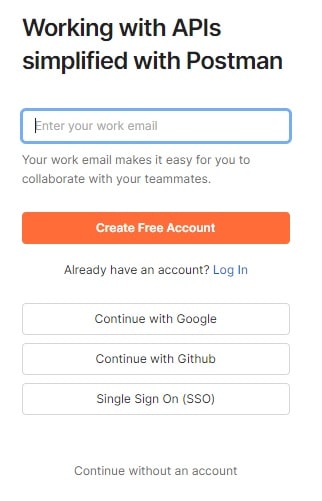
1. Create an Account: Sign up with your email, Google, or GitHub account.
2. Explore the UI – Get familiar with the workspace, request tab, collections, and history.
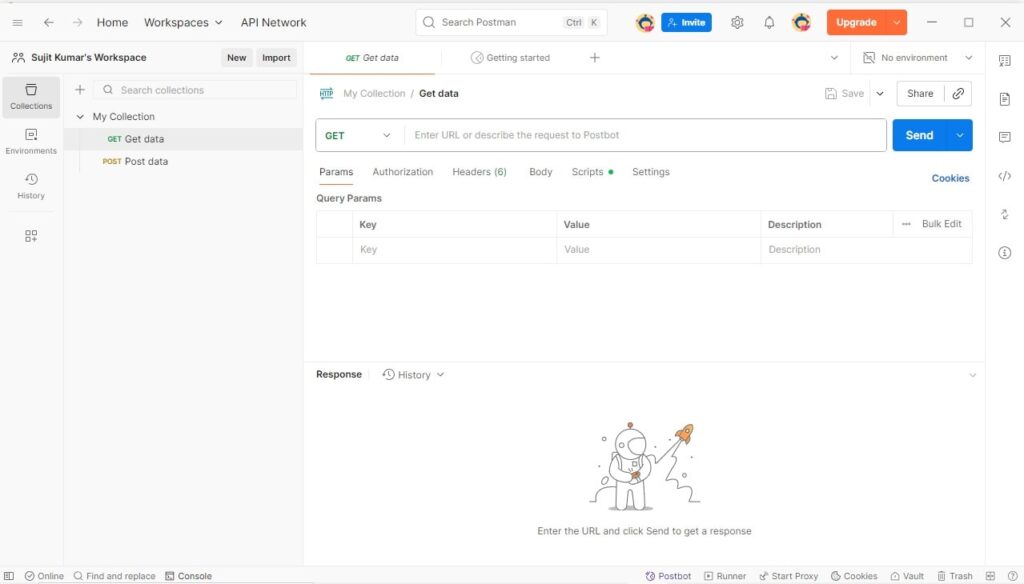
3. Import Sample Collection – Postman provides example APIs you can test right away.
- Go to File > Import
- Select a sample collection or paste a URL (e.g.,
https://www.postman.com/collections/).
4. Send Your First Request – Try calling a public API, such as:
- URL:
https://jsonplaceholder.typicode.com/posts/1 - Method:
GET
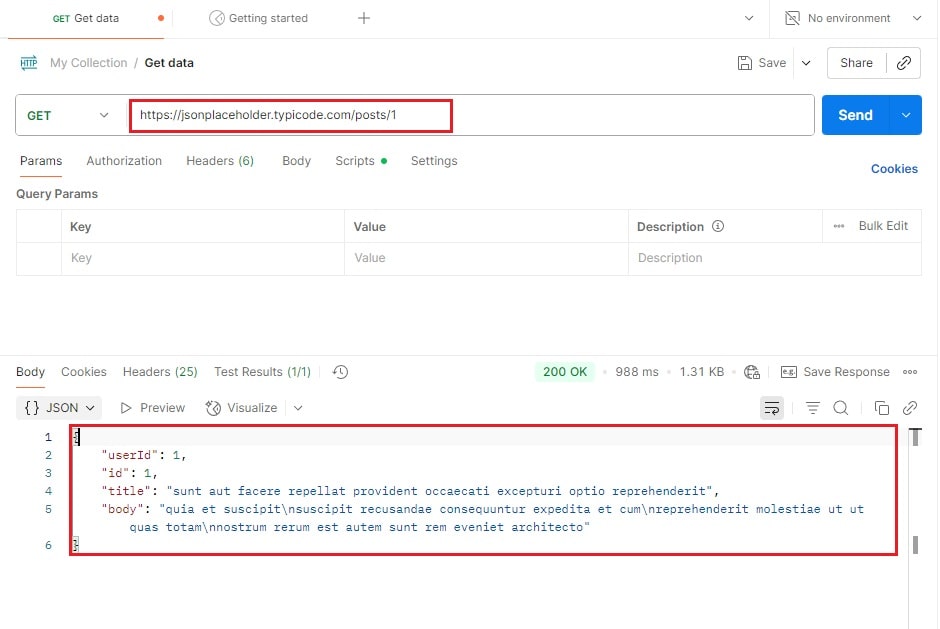
You should see a JSON response, which means Postman is working correctly.
Postman Web vs Desktop Version
You can use Postman in two ways:
- Postman Desktop App: Best for full functionality, offline testing, and advanced features.
- Postman Web: Runs in your browser (Chrome/Edge), requires the Postman Agent for local APIs.
If you’re a beginner, the desktop version is recommended because it works offline and has fewer limitations.
Common Setup Issues and How to Fix Them
Here are some common issues and troubleshooting tips:
1. Postman won’t launch
Reboot your system or reinstall with the latest version.
2. SSL Certificate Errors
Disable SSL verification in Settings > General > SSL Certificate Verification.
3. Postman Web not working with local APIs
Install the Postman Agent from the downloads page.
4. Mac security warning
Go to System Preferences > Security & Privacy > Allow App.
Conclusion
In this Postman setup tutorial for beginners, we covered:
- What Postman is and why it’s useful
- System requirements and supported platforms
- How to install Postman on Windows, macOS, and Linux
- First-time setup with collections and requests
- Difference between Postman Desktop and Web version
- Troubleshooting common installation issues
You may also read:
How to Use Postman with Online Mock APIs
Jackson JSON Setup for a Standalone Java Application
FAQs
Do I need an account to use Postman?
Yes, Postman has changed its behavior in recent versions. The old Scratch Pad mode that allowed offline usage without signing in has been deprecated, and now Postman forces users to sign in before accessing most features.
Is Postman free to use?
Yes, Postman offers a free version with enough features for most beginners.
Can I use Postman without installing it?
Yes, you can use Postman Web, but the desktop app is recommended for offline use.
Where can I learn more about using Postman?
Check out the official docs: https://learning.postman.com/