
If you want to boost your coding productivity using AI, GitHub Copilot is one of the most powerful tools available today. It acts like an AI pair programmer directly inside your editor.
In this guide, you’ll learn how to install and configure Copilot Chat in Visual Studio Code step by step, along with practical tips to start using it effectively.
Table of Contents
What is GitHub Copilot?
GitHub Copilot is an AI-powered coding assistant developed by GitHub and OpenAI.
It helps you:
- Write code faster
- Generate functions instantly
- Debug and refactor code
- Ask coding questions via chat
Prerequisites
Before you begin, make sure you have:
- Installed Visual Studio Code
- A GitHub account
- Active GitHub Copilot subscription (Free trial available)
Steps to Install GitHub Copilot Chat in VS Code
Follow these steps to get started with Copilot in VS Code:
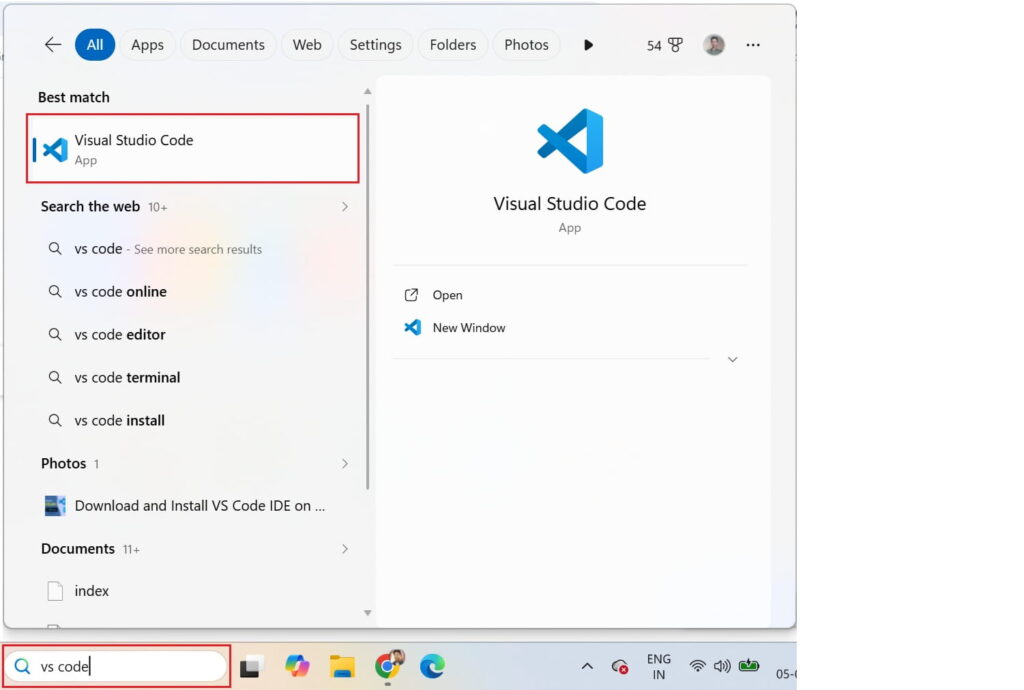
Step 1: Open Visual Studio Code
Go to Windows search > Type vs code > Click on the installed Visual Studio Code. If VS Code is not installed yet, follow the blog post: Install VS Code on Windows
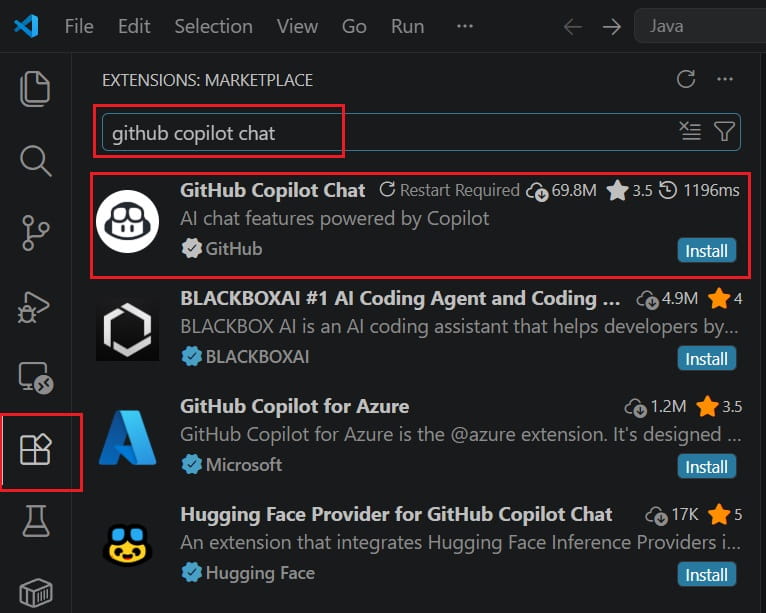
Step 2: Install GitHub Copilot Chat Extension
Go to Extensions > Search for ‘github copilot chat‘ > Click on Install
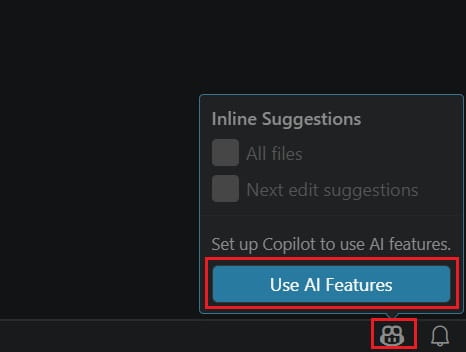
Step 3: Sign in to GitHub
After successful installation of the GitHub Copilot extension:
1. Hover over the Copilot icon in the Status Bar and select Use AI Features.
2. Choose a sign-in method and follow the prompts.
- If you don’t have a Copilot subscription yet, you’ll be signed up for the Copilot Free plan and get a monthly limit of inline suggestions and chat interactions.
- If you already have a Copilot subscription for your account, VS Code will use that subscription.
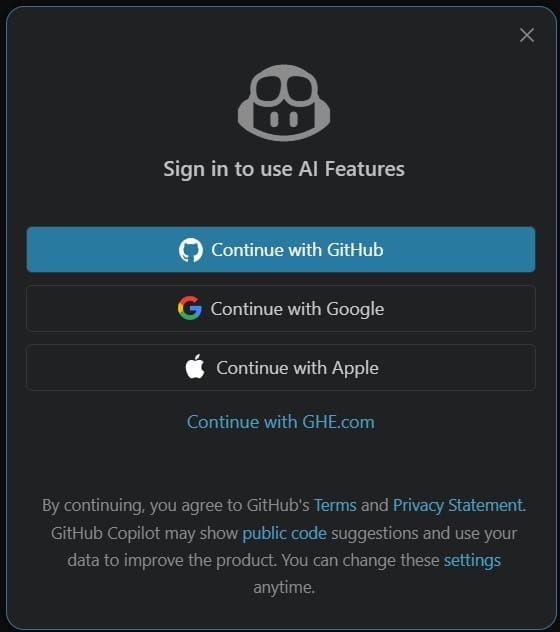
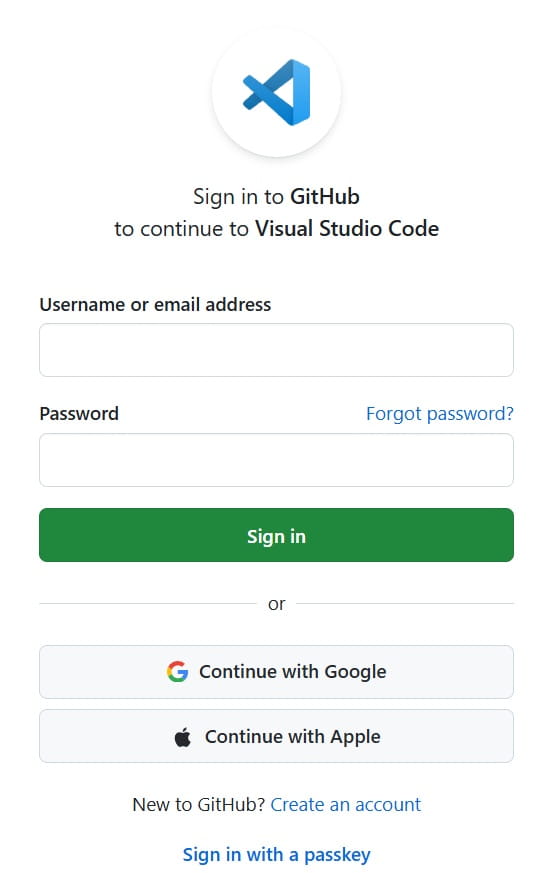
3. After clicking on Continue with GitHub, A browser window opens as shown in the image below:
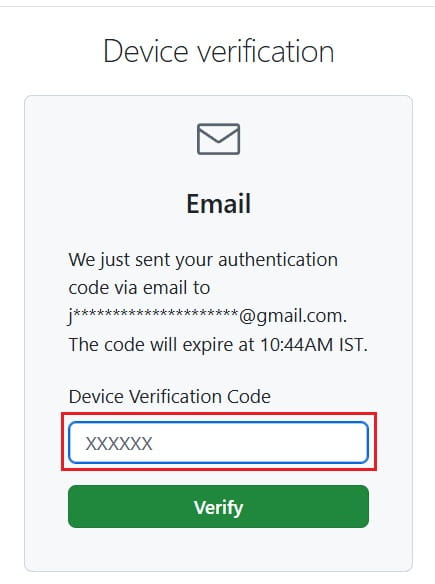
4. Enter the Device Verification Code sent to your given email, and then click on Verify
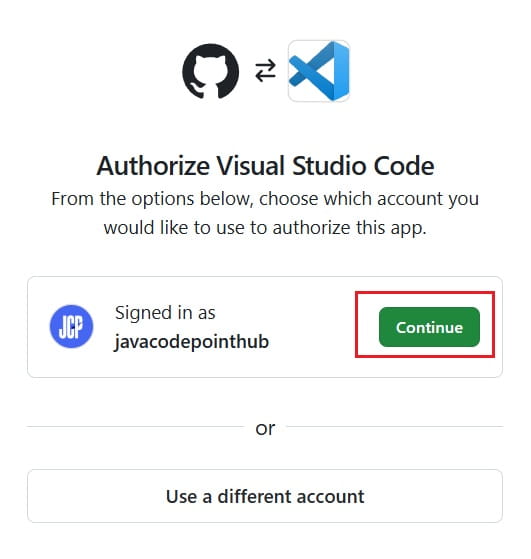
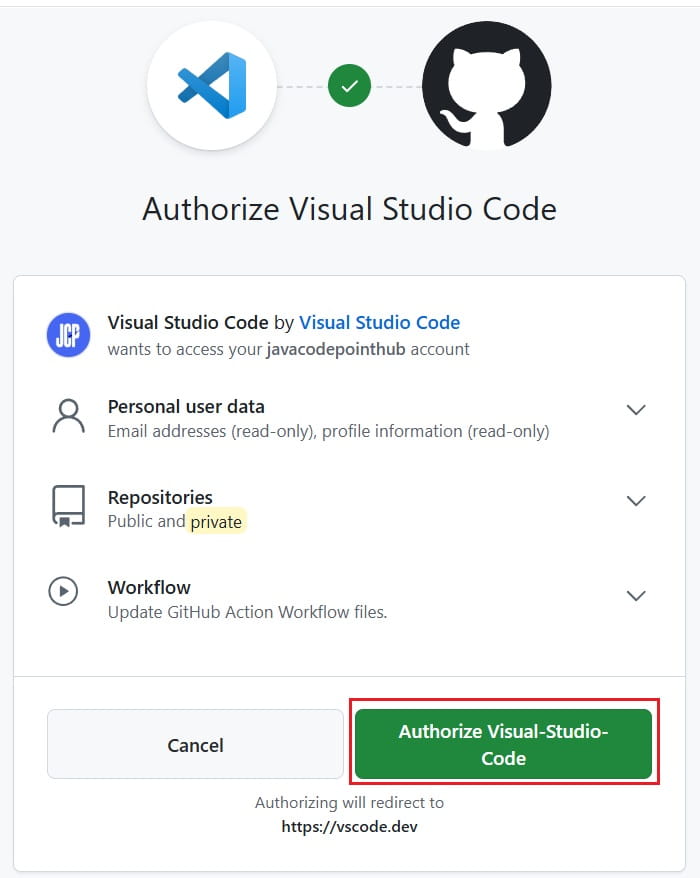
5. Authorize Visual Studio Code and Click on Continue
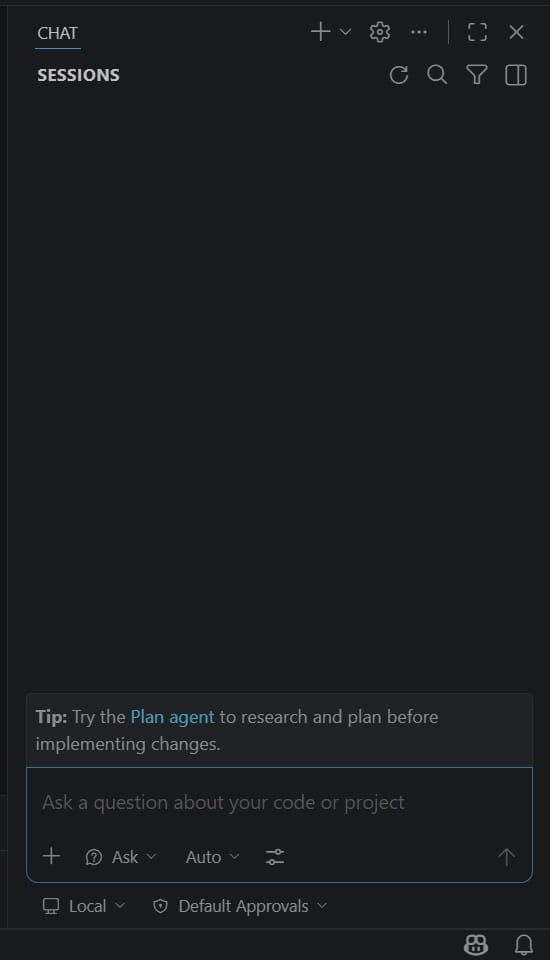
6. Return to VS Code IDE, and now you are ready with the Copilot Chat.
Troubleshooting Common Issues with GitHub Copilot in Visual Studio Code
Even after proper installation, you might face a few issues while using GitHub Copilot Chat in VS Code. Don’t worry, most problems are easy to fix.
Below are the most common issues developers face, along with proven solutions.
1. GitHub Copilot Not Working
Symptoms:
- No code suggestions appearing
- Copilot seems inactive
Fix:
- Restart VS Code
- Make sure you are logged into GitHub
- Check if Copilot is enabled: Settings → Search “Copilot” → Enable
- Verify your subscription is active
2. Copilot Chat Not Showing in Sidebar
Symptoms:
- Chat icon missing
- Cannot open Copilot Chat
Fix:
- Ensure Copilot Chat extension is installed
- Reload VS Code window: Ctrl + Shift + P → Reload Window
- Open manually: Ctrl + Shift + P → Copilot Chat: Open
3. “No Access” or Subscription Error
Symptoms:
- Message like: You don’t have access to GitHub Copilot
Fix:
- Go to your GitHub account settings
- Check if Copilot plan is active
- Start free trial if not subscribed
4. Inline Suggestions Not Appearing
Symptoms:
- No ghost text while typing
Fix:
- Enable inline suggestions: Settings → Copilot → Enable Inline Suggestions
- Check if suggestions are disabled for that file type
- Try a supported language (Java, JS, Python)
5. Authentication Issues (Login Loop)
Symptoms:
- Repeated login prompts
- Unable to authenticate
Fix:
- Sign out and sign in again: Accounts → Sign Out → Sign In
- Clear browser cache and retry
- Make sure GitHub is not blocked by firewall
6. Copilot Slow or Not Responding
Symptoms:
- Delayed suggestions
- Chat responses taking too long
Fix:
- Check your internet connection
- Disable unnecessary VS Code extensions
- Restart VS Code
- Update to latest version
7. Not Working in Corporate Network
Symptoms:
- Copilot not connecting
- Network errors
Fix:
Configure proxy settings:
Settings → search "proxy"
Add your company proxy details if required.
8. Extension Conflicts
Symptoms:
- Copilot behaves unexpectedly
- Suggestions stop randomly
Fix:
- Disable conflicting extensions (AI tools, autocomplete tools)
- Restart VS Code
- Reinstall Copilot extension
9. Copilot Works in Some Files but Not Others
Symptoms:
- Works in
.jsbut not in.java(or vice versa)
Fix:
- Check language-specific settings
- Ensure file type is supported
- Verify Copilot is enabled for that language
10. Still Not Working? Try This Reset Method
If nothing works, do a clean reset:
Steps:
- Uninstall:
- GitHub Copilot
- Copilot Chat
- Restart VS Code
- Reinstall both extensions
- Sign in again
This fixes most hidden issues.
Conclusion
Installing GitHub Copilot Chat in Visual Studio Code is straightforward and can significantly improve your development speed. Once set up, it becomes your AI-powered coding partner, helping you write better code faster.