
Docker has become an essential tool for developers, DevOps engineers, and testers. Whether you are working with Java, Spring Boot, Angular, Kafka, or Kubernetes, Docker makes local development faster and more consistent.
In this blog post, you will learn how to install Docker Desktop on Windows 10 and Windows 11, including prerequisites, step-by-step installation, verification, and common troubleshooting tips. This guide is beginner-friendly and works for both operating systems.

Table of Contents
Why Use Docker Desktop on Windows?
Docker Desktop allows you to:
- Run applications in isolated containers
- Avoid “it works on my machine” issues
- Set up databases, message brokers, and tools in minutes
- Work with Docker Compose and Kubernetes locally
It is widely used in modern backend and frontend development workflows.
Prerequisites for Docker Desktop (Windows 10 & 11)
Before installing Docker Desktop, ensure your system meets the following requirements.
1. Supported Windows Versions
Docker Desktop supports:
- Windows 10 64-bit (version 21H2 or later)
- Windows 11 64-bit
- Editions: Home, Pro, Enterprise, Education
2. Hardware Requirements
Minimum system requirements:
- 64-bit processor
- Virtualization support enabled
- At least 4 GB RAM (8 GB recommended)
- Enough free disk space (minimum 10 GB recommended)
3. Enable Virtualization in BIOS
Docker requires CPU virtualization to be enabled.
Steps:
- Restart your computer
- Enter BIOS or UEFI settings (usually by pressing F2, DEL, F10, or ESC)
- Look for one of the following options:
- Intel Virtualization Technology (VT-x)
- AMD-V or SVM Mode
- Enable the option
- Save changes and restart the system
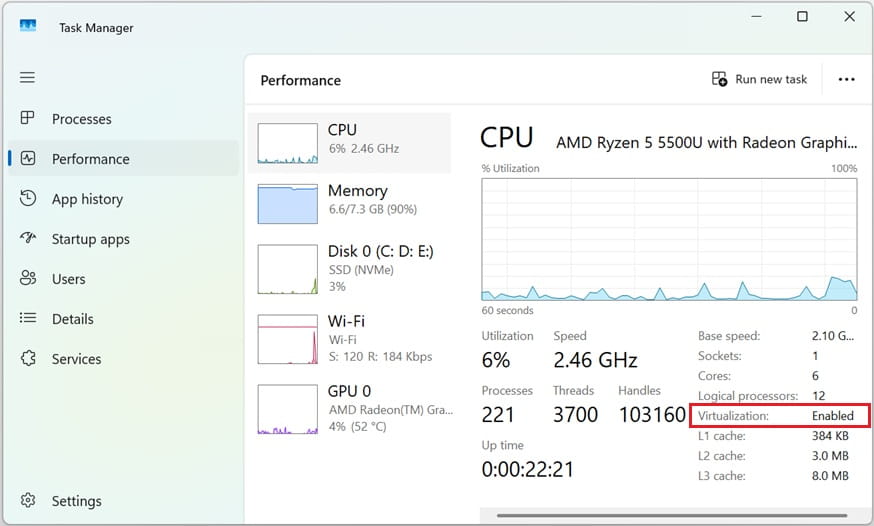
Verify in Windows:
- Open Task Manager
- Go to Performance → CPU
- Check that Virtualization: Enabled is displayed
4. Enable WSL 2 (Windows Subsystem for Linux)
Docker Desktop uses WSL 2 as its backend on Windows 10 and 11.
Step-by-Step Guide to Install Docker Desktop on Windows 10/ Windows 11
Step 1: Install and Enable WSL 2
Open PowerShell as Administrator and run:
wsl --install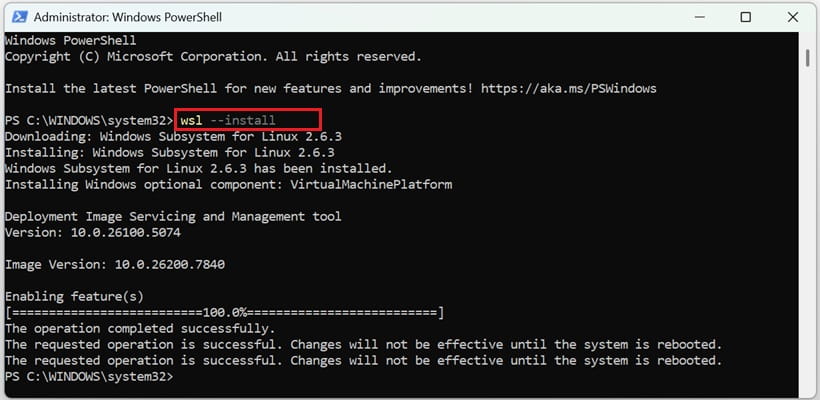
This command will:
- Enable WSL
- Install the Virtual Machine Platform
- Install a default Linux distribution (Ubuntu)
Restart your system when prompted.
After a restart, set WSL 2 as the default version:
wsl --set-default-version 2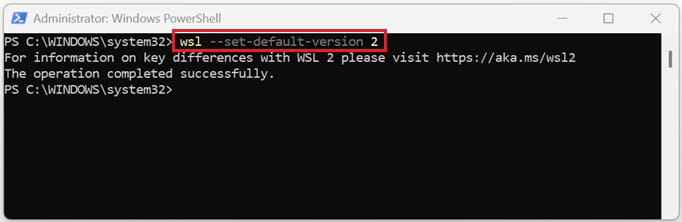
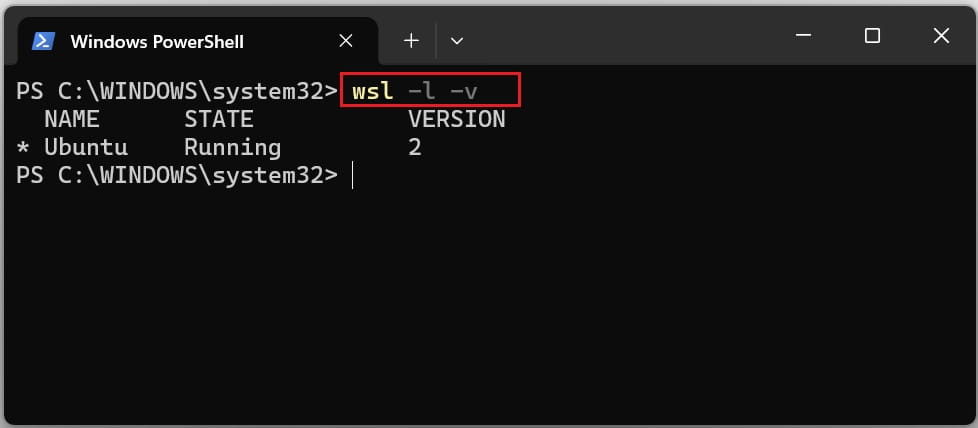
Verify installation:
wsl -l -vYou should see your Linux distro running with VERSION 2.
Step 2: Download Docker Desktop
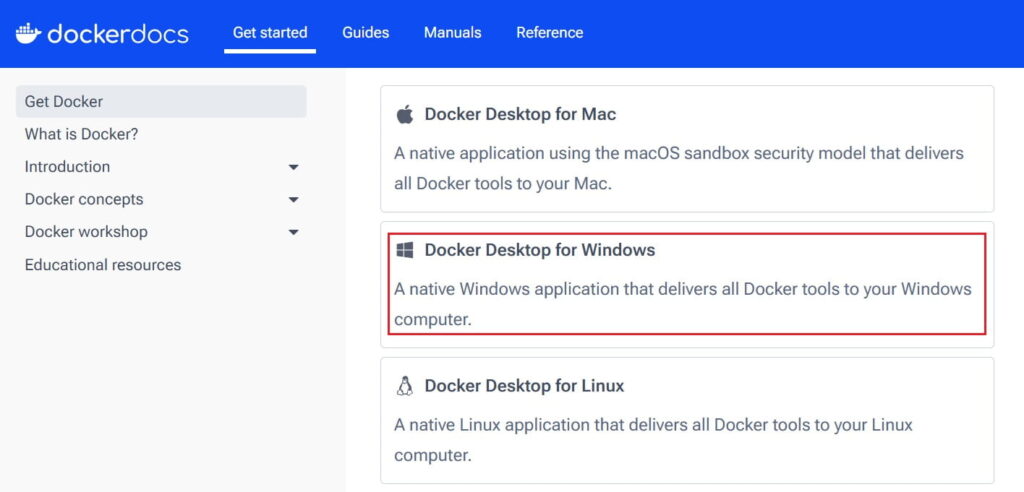
- Open your browser
- Go to the official Docker website
- Download Docker Desktop for Windows
- Save the installer file (
Docker Desktop Installer.exe)

Step 3: Install Docker Desktop
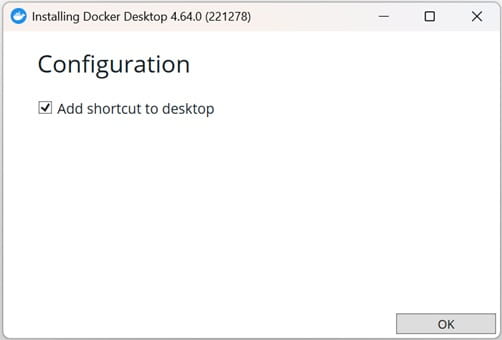
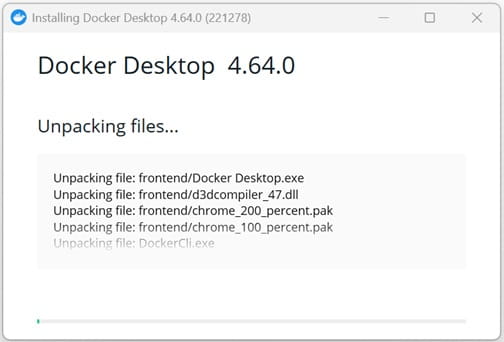
- Double-click the installer file
- During installation, ensure the option Use WSL 2 instead of Hyper-V is selected
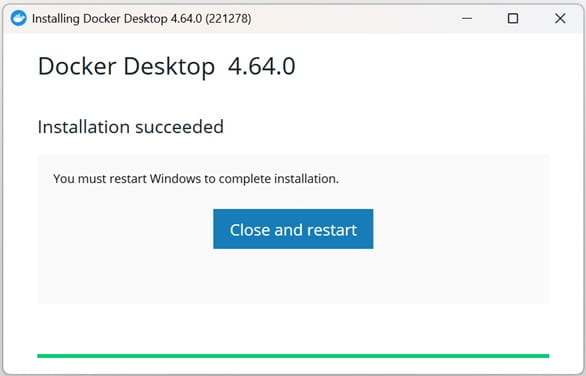
- Click OK and wait for the installation to complete
- Restart your system if required
Step 4: Start Docker Desktop
1. Open Docker Desktop from the Start Menu or Desktop shortcut
2. Accept the Docker license agreement

3. Log in with an email or Google Account
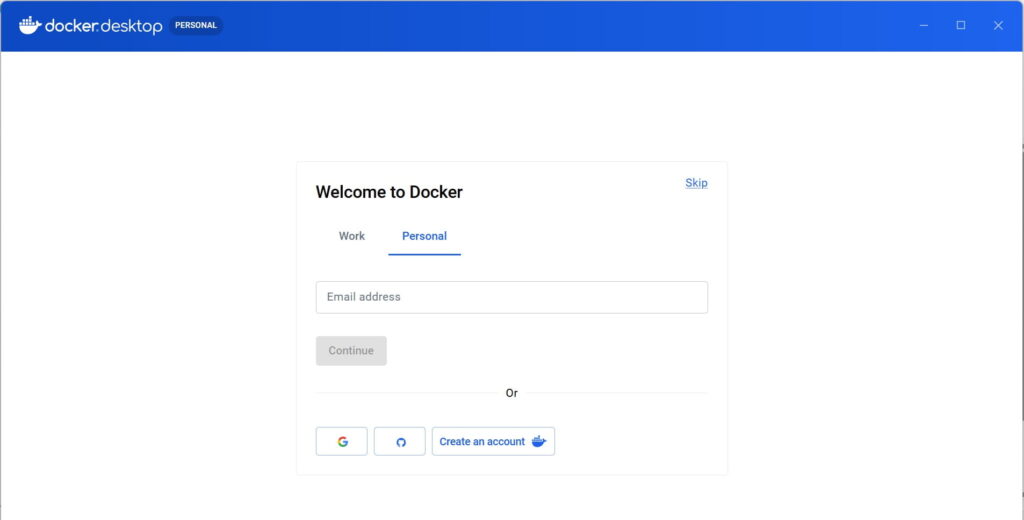
4. Wait until Docker finishes starting
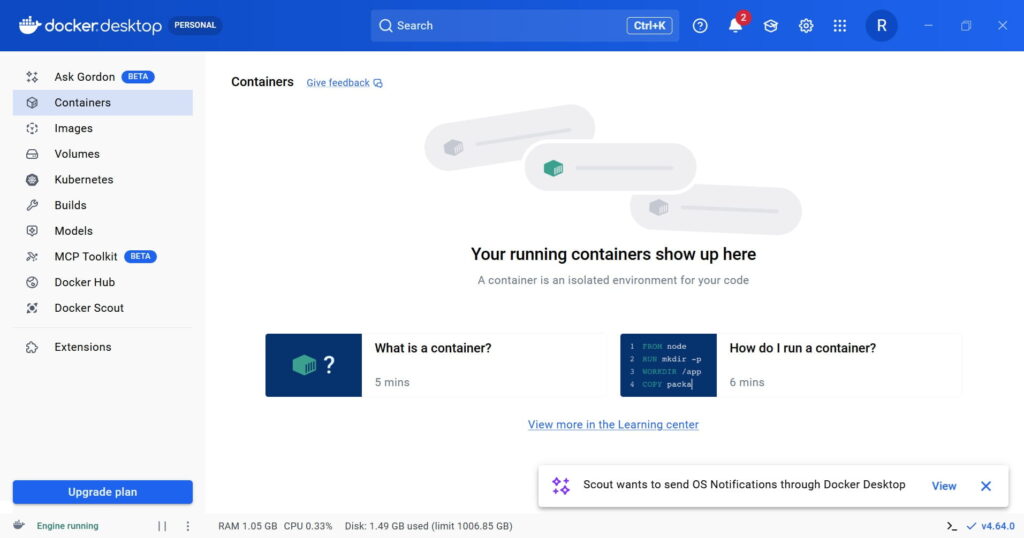
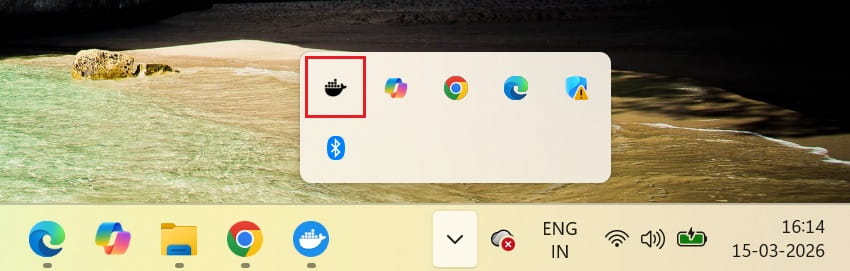
5. When Docker is running successfully, you will see the whale icon in the system tray.
Step 5: Verify Docker Installation
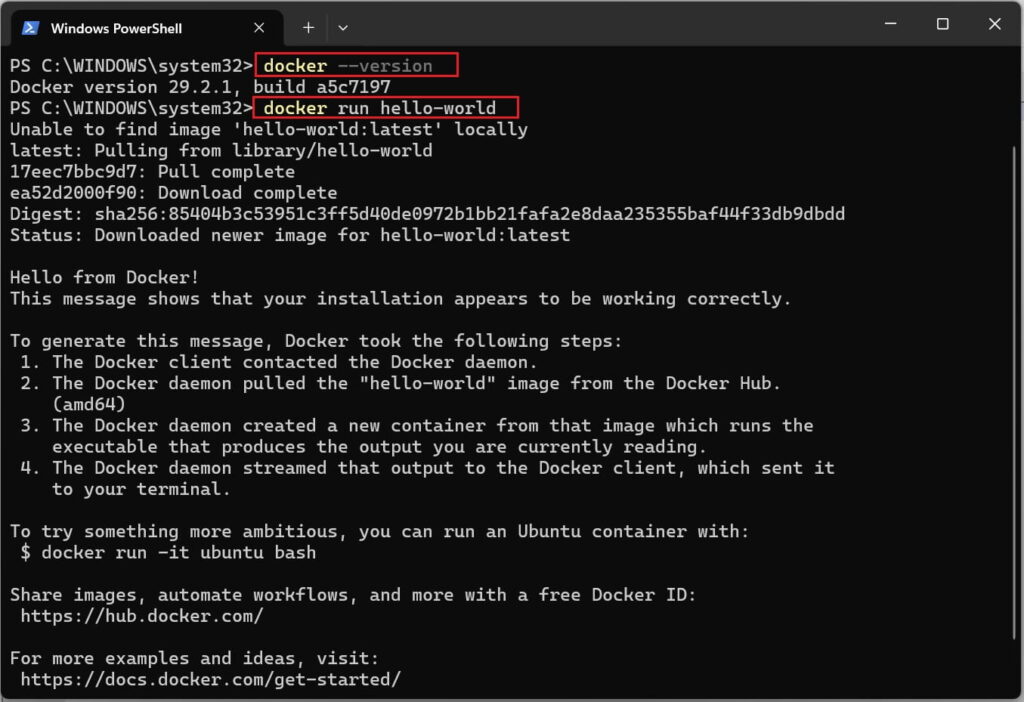
Open Command Prompt, PowerShell, or Windows Terminal and run:
docker --versionExpected output:
Docker version XX.X.X, build XXXXX
Now test Docker with a sample container:
docker run hello-worldIf Docker prints a success message, your installation is complete.
Optional: Enable Docker Integration with WSL
For better performance and developer experience:
- Open Docker Desktop
- Go to Settings → Resources → WSL Integration
- Enable integration for your Linux distribution (for example, Ubuntu)
- Click Apply & Restart
This allows you to run Docker commands directly from WSL.

Common Docker Desktop Issues and Solutions
Docker Desktop Not Starting
- Ensure virtualization is enabled in BIOS
- Confirm WSL is installed and using version 2
WSL is Using Version 1
wsl --set-version Ubuntu 2Port Already in Use Error
- Stop the application using the port
- Or expose a different port in your Docker container
Conclusion
Installing Docker Desktop on Windows 10 or Windows 11 is straightforward once the prerequisites are in place. With WSL 2 and virtualization enabled, Docker provides a powerful local development environment for modern applications.