
Install Ollama: Do you want to run powerful AI models like CodeLlama locally on Windows without cloud costs or API limits? This detailed Ollama installation guide for Windows will walk you through every step: installing Ollama, verifying your setup, downloading CodeLlama, and testing it via CLI and Postman.
Table of Contents
What is Ollama?
Ollama is a free, lightweight tool that lets you run large language models (LLMs) locally on your computer. It includes:
- A simple command-line interface (CLI).
- A local REST API (default port
11434). - Support for popular open-source models like Llama 2, CodeLlama, Mistral, and Llama 3.
With Ollama, you can use models like CodeLlama for coding assistance, text generation, or personal chatbots—all offline, without sending data to external servers.
System Requirements for Windows
Before installing, make sure your PC meets these requirements:
- Operating System: Windows 10 or Windows 11 (64-bit).
- CPU: Modern x86_64 processor (Intel or AMD).
- RAM: Minimum 8 GB (16 GB recommended for CodeLlama 7B).
- Disk Space: At least 5–10 GB free (models are large).
- GPU (Optional): NVIDIA GPU with CUDA drivers for faster performance. If no GPU is available, Ollama runs on CPU.
Step 1: Download and Install Ollama on Windows
1. Go to the official Ollama download page: https://ollama.com/download
2. Click on Download for Windows (.exe file).
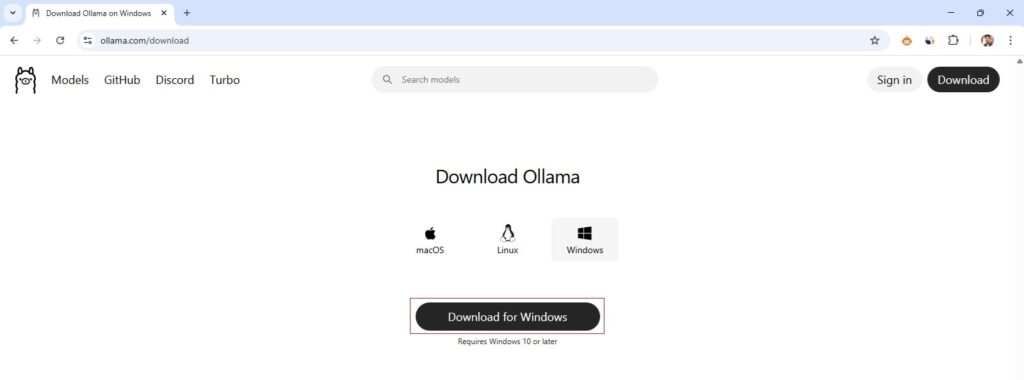
Once downloaded, you should see it in the Downloads folder on your computer.

3. Now, double-click the OllamaSetup.exe and follow the installation wizard. During installation, grant permission if Windows Defender asks for confirmation.
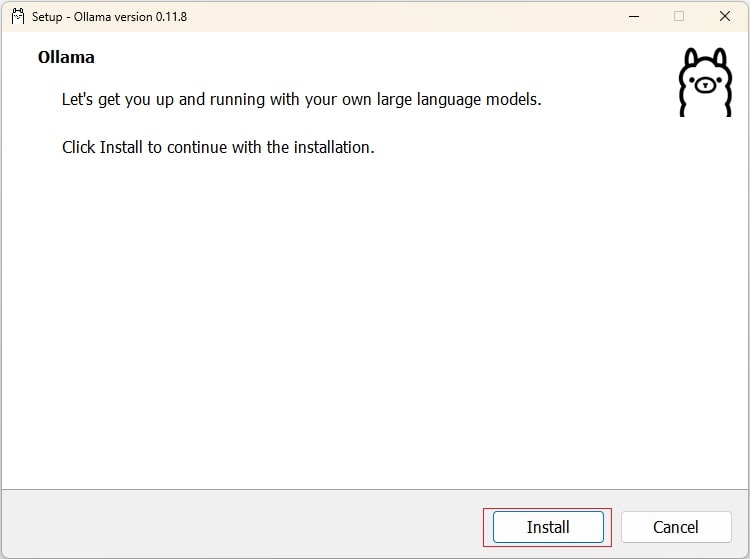
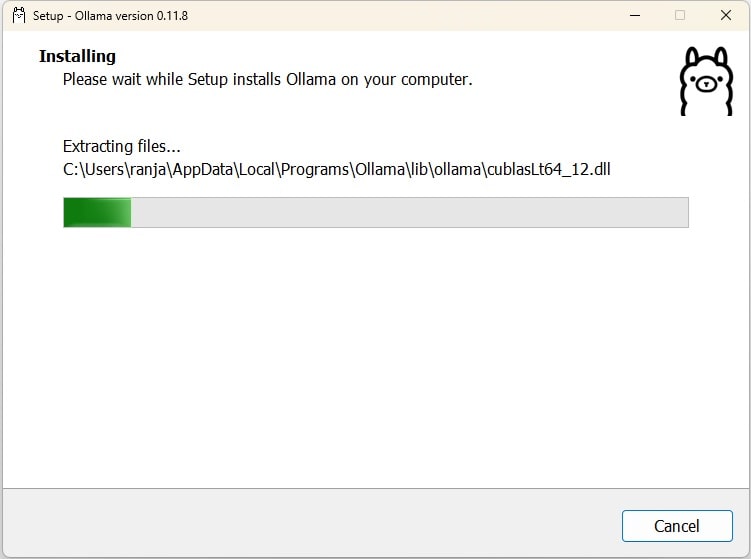
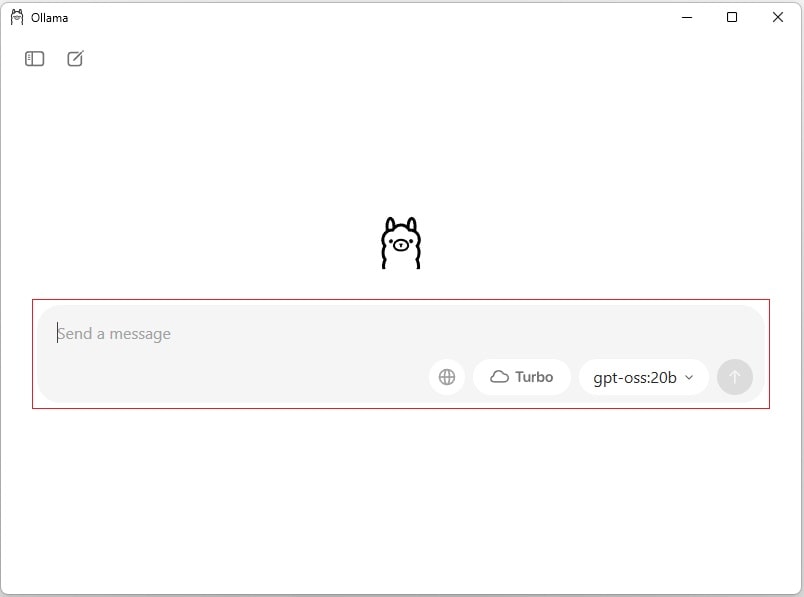
After installation, Ollama will be added to your PATH (so you can run it from PowerShell or Command Prompt).
Step 2: Verify Ollama Installation
Open Command Prompt and run the command: ollama --version
You should see something like:
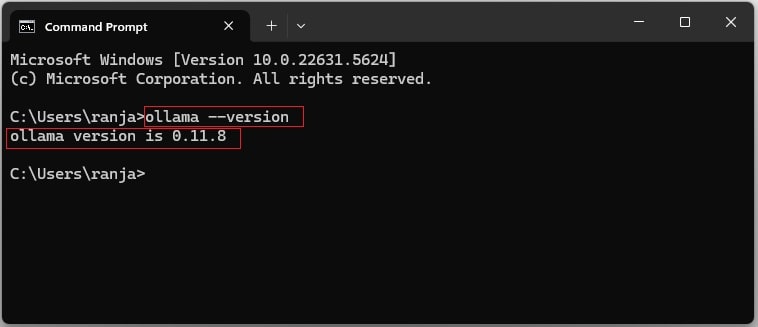
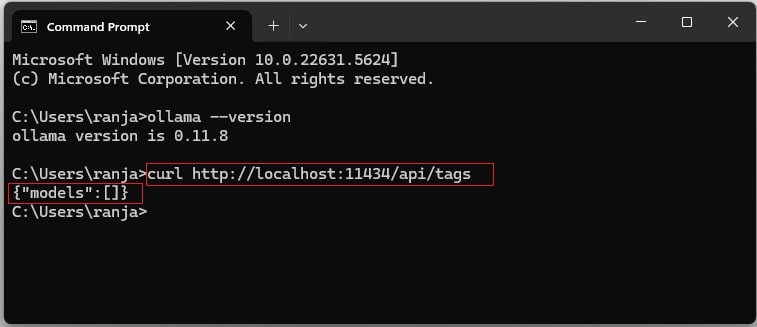
Now, check if the background service (API server) is running:
Run the command: curl http://localhost:11434/api/tags, then the expected output (empty JSON if no models yet):
Step 3: Install the CodeLlama Model
Pull the CodeLlama model (7B variant recommended for Windows users):
ollama pull codellama
This will download the model (~4–7 GB depending on version). The first pull may take several minutes.
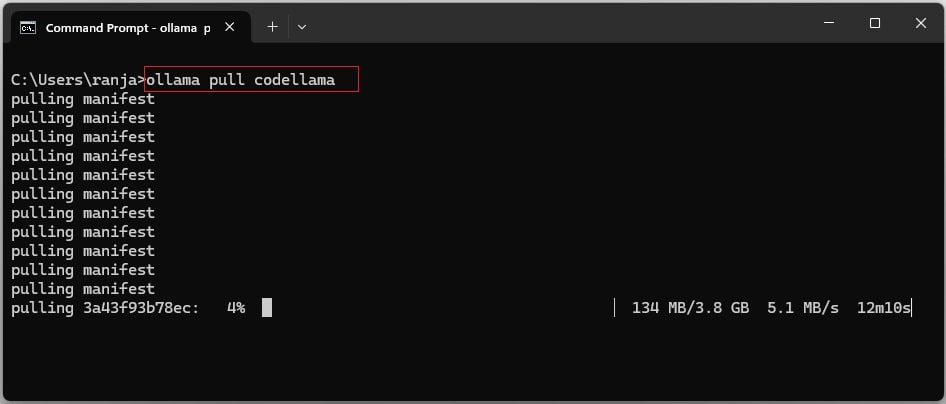
Now, after the success of the pull request, you can test it either via:
- Command Prompt:
curl http://localhost:11434/api/tags - Browser: send the request to
http://localhost:11434/api/tags
Then you should see the model details as below,
{
  "models": [
    {
      "name": "codellama:7b",
      "model": "codellama:7b",
      "modified_at": "2025-09-01T09:36:25.9668639+05:30",
      "size": 3825910662,
      "digest": "8fdf8f752f6e80de33e82f381aba784c025982752cd1ae9377add66449d2225f",
      "details": {
        "parent_model": "",
        "format": "gguf",
        "family": "llama",
        "families": null,
        "parameter_size": "7B",
        "quantization_level": "Q4_0"
      }
    },
    {
      "name": "codellama:latest",
      "model": "codellama:latest",
      "modified_at": "2025-08-31T22:39:31.118185+05:30",
      "size": 3825910662,
      "digest": "8fdf8f752f6e80de33e82f381aba784c025982752cd1ae9377add66449d2225f",
      "details": {
        "parent_model": "",
        "format": "gguf",
        "family": "llama",
        "families": null,
        "parameter_size": "7B",
        "quantization_level": "Q4_0"
      }
    }
  ]
}
Step 4: Run CodeLlama in the CLI
Once the model is downloaded, you can run it directly:
ollama run codellama
You’ll see a prompt:
>>>
Now type something (Prompt) like: Write a Java function to calculate Fibonacci numbers.
And CodeLlama will generate the function code.
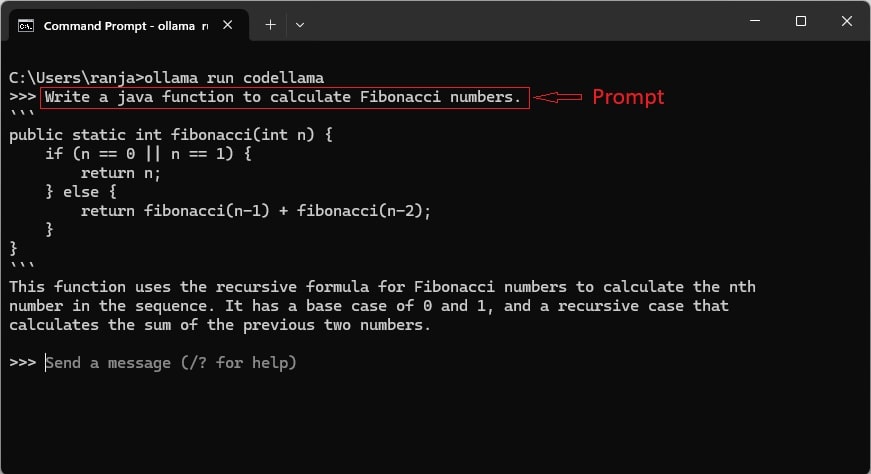
To exit, press Ctrl + D or type /bye.
Step 5: Test CodeLlama via Postman (REST API)
Ollama automatically runs a local REST API on http://localhost:11434.
Example Request in Postman
- Open Postman.
- Create a POST request:
http://localhost:11434/api/generate - Set Headers:
Content-Type:application/json
- In the Body (raw JSON), enter:
{
  "model": "codellama",
  "prompt": "Write a Java program to reverse a string.",
  "stream": false
}
- Click Send.
Example Response
{
  "response": "Sure! Here's a simple Java program to reverse a string:\n\n```java\npublic class ReverseString {\n    public static void main(String[] args) {\n        String input = \"Hello World\";\n        String reversed = new StringBuilder(input).reverse().toString();\n        System.out.println(\"Reversed: \" + reversed);\n    }\n}\n```"
}
If you need a detailed guide for testing the API using Postman, see here: How to Use Postman
Troubleshooting Ollama on Windows
- Ollama command not found
→ Restart PowerShell. Ensure Ollama installation is added to PATH. - Port 11434 is already in use
→ Another service is using it. Stop that service or run Ollama on a new port:$env:OLLAMA_HOST="127.0.0.1:11435"; ollama serve - Slow performance
→ Install NVIDIA CUDA drivers if you have a supported GPU. Otherwise, Ollama runs on CPU. - Firewall prompts
→ Allow Ollama to communicate on private networks (needed for Postman tests).
Conclusion
In this guide, you learned how to:
- Install Ollama on Windows (free and local).
- Verify installation via CLI.
- Pull and run CodeLlama for coding tasks.
- Test Ollama using CLI and Postman REST API.
- Fix common issues like firewall prompts or port conflicts.
With Ollama, you now have a free local AI model setup on Windows, running CodeLlama for code generation and chatbot-style interactions—no cloud required.